Hi all
Wondering if there’s a way to relocate the samples folder to another drive? I’ve upgraded and am reorganising my instruments. I’ve tried changing the content folder location in the the Crow Hill app and moving the content there, but this doesn’t seem to be working.
Thanks
Anthony
Hi. Thanks for the reply. Yes, I’ve tried that but the VST keeps looking in the original installation location. The app itself also automatically opens that folder, which makes me think it isn’t overwriting the new location when selecting the blob file.
Sorry that didn’t help; your best bet is probably to raise a support ticket.
1 Like
Thanks anyway. I’ve submitted a ticket.
1 Like
Thanks, I have the same question.
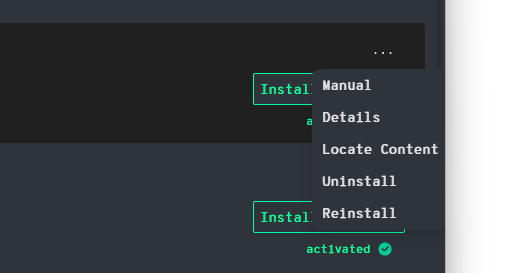
So, it turns out the “Locate folder” function literally does just that - it opens the folder where the product content was installed. There is no way to redirect to another location.
1 Like
Ah. So it turned out in the end that there is no way to relocate the sample content (blob files). Uninstall and reinstall is the only way. I’ve deactivated the “automatically delete downloaded files after installation” option so I can have those available in case I need to do this again for some reason.
1 Like
Hey,
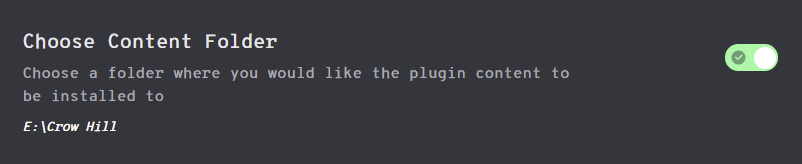
I see nobody mention the “Choose Content Folder” option in the Settings Dialog. Oddly enough it doesn’t have a “Browse” button but looks like a checkbox.
However, this is where you set the root folder of all sample libraries (*.blob) and the VAULTS. But there’s more to that and I believe just changing the value and be done will only affect newly installed libraries, not the ones already present.
If you already reinstalled and downloaded everything, then well… It might still be useful for somebody else in the future.
DISCLAIMER: THE FOLLOWING MAY NOT BE APPLICABLE TO CROW HILL APPS ABOVE VERSION 1.x ON WINDOWS!
As of July 2025 it is also only known (by me) to work with 1.1.x
I’m pretty sure TCHC do not officially support this either but somebody may confirm that it “should work” if I didn’t miss a point and you don’t mess up the instructions 
I can only provide the procedure for Windows given all libraries have already been installed and work as they should. This may not help if your setup is already screwed up but it might give you clues where to look and and maybe fix things on your own.
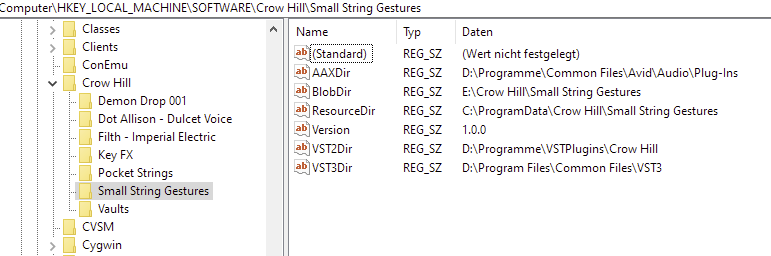
It however involves editing the settings file for every library (except VAULTS) and making changes to the Windows Registry where every library’s content location “BlobDir” is stored for the actualy plugin installer.
To make changes to the Registry you must have “Admin” privileges, which is what you also need to install software so you should be good
-
close the Crow Hill App and any plugin host (DAW)
-
create the new target folder, i.e.
M:\Crow Hill– DO NOT Use the root of the (new) drive -
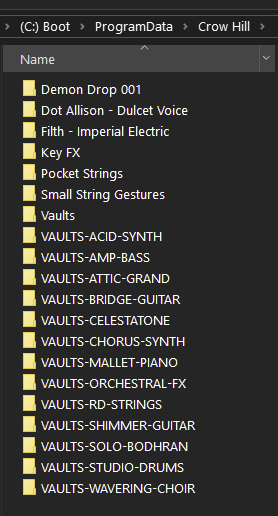
COPY everything from the old content folder to that new folder. You should then have a subdirectory for each library and VAULT, i.e
M:\Crow Hill\Small String Gestures,
M:\Crow Hill\Pocket Strings,
M:\Crow Hill\VAULTS-ATTIC-GRANDetc. -
RENAME the old content folder, you can nuke this later
-
to modify the settings files find the install folder for the plugins in
C:\ProgramData\Crow Hill.
Note that it is “ProgramData” not “Programs” or “Program Files”!!
It has an identical folder structure of libraries. This are the plugins with their fancy interfaces. -
Each library folder contains (among other things we don’t care for) a *.settings file named after the library, i.e.
"C:\ProgramData\Crow Hill\Small String Gestures\Small String Gestures.settings"
This is a plain text file you should edit with a text or code editor only, such asNotepad.exe. Do NOT use any Rich Text word processor like Word or OpenOffice to edit these *.settings files! -
*make a BACKUP copy of each library .settings file
-
edit each *.settings file in your text editor and change the value of the
blobLocationto point to the new library location, i.e,
{"blobLocation": "M:\\Crow Hill\\Small String Gestures"}
Be aware of the quotes and double slashes that separate content folder and library name:\\ -
Do this for every library you have but for VAULT. These instruments are all expected to be located in the default content folder and don’t come with a settings file anyway.
Now for the Windows registry changes.
The registry stuff is only used by the installer application if you re-install a library (the ones you told the app to remove). The app uses it’s own independent settings (see below). You may get by leaving the registry alone (for now) but might get into trouble if you reinstall and paths and locations do not line up.
-
run Search and type “regedit.exe”, The icon looks like a blue Rubics Cube.
-
choose “Run as Administrator” and confirm the security message (like when you install software)
-
in the left tree navigate to
HKEY_LOCAL_MACHINE\SOFTWARE\Crow Hill -
it again has a sub folder for each library you installed - you might sense a common scheme here…
-
make a BACKUP of this folder structure. Right click on “Crow Hill”, select “Export” and file a nice place for the file, i.e “HKLM Crow Hill.reg” Make sure to add the .reg file extension. (You can use this backup file in case things go south by simply double clicking it and “merge” it back.)
-
Drill down into each library “folder” and change the value of
BlobDir(except for VAULTS), i.e.
M:\Crow Hill\Small String Gestures
Note how there is now only a single backslash to separate the folders. -
close regedit
Bring it together:
-
open the Crow Hill App
-
go to “Settings” and click the checkbox where it says “Choose Content Folder”. If it’s already green, click once to disable, then click again and pick you new sample folder
M:\Crow Hill. Do NOT select any of the library folders! -
Confirm with “Select folder”.
-
the selected path (
M:\Crow Hill) will appear below the settings description similar to the Download Folder and VST2 Folder. -
close settings then close the app
-
relaunch the app an verify the setting are intact
-
all instruments should still read “Installed” and “activated” (in green)
-
check with the “Locate Content” option from the “[…]” menu. It should always take you to your equivalent of “
M:\Crow Hill”
Finally: open your DAW and check that all libraries load and make the expected noises.
If things went well, you may remove the old sample folder, the one you renamed earlier in the first “Step 4.”
In case a library does not work verify the .settings file, don’t lose a quote and use two slashes \\ for the path.
Good luck!
Just FYI: app settings are located in “%AppData%\Crow Hill App” in another text file named settings.json. This file is maintained via the Settings inside the App. No need to mess with this one!
(You can paste %AppData% (incl. the %) into the search bar and Windows will take you to that folder in your user home directory where you’ll also find “Crow Hill App”.)
TIP: you may want to backup it’s sibling folder “%AppData%\Crow Hill” where all the library licenses are stored.
Cheers
1 Like